 **Check out my other WINK hacking videos too ** Google Play Store and the notes below, lots of helpful information as well as TIPS ** Click “SHOW MORE”
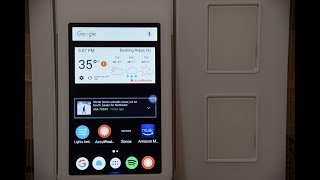
This video shows you step by step how to change the Wink relay wall controller from WINK only to any Google / Android desktop. This will also allow you to go between the two and customize the screens to your own liking. The default Wink application can be slow and lacks the ability to really tailor the screen to ones personal taste. Please comment if you have any questions or like the video?
Wink has discontinued the Wink Relay and had a Black Friday fire sale as low as $25 each. Home Depot still sells them for $99 as well as amazon and there are plenty on eBay for $69 to $89.
Directions were originally complied by winkrealy.com but that is no longer available so they were copied to a mirror site. I have embedded this into the video as links can and often disappear with the knowledge lost.
Applications I suggest using
Google Play Service (Needed to load some apps)
Google Now Launcher or Total Launcher or Nova (your choice)
Multi Home Button
Application Assistant
APKpure (APK download site) – you can use any you want
Wink (Android Version if you want to remove the WINK Relay function)
Any weather App of your choice
Any News App of your choice
Later check this out for getting the Google Play Store working if you need it. ***** https://youtu.be/yIlhpnLo0tA
You can also default the display to stay on all the time if you do not like the sensor or tap to display feature. I will post another video on how to do that shortly, if not just comment for it. You can also load some themes like Star Trek LCARS on top of Total Launcher if you like but will take time to customize for home automation. To add your apps to Total Launcher just press and hold an empty part of the screen and the edit menu will come up. You can add or move around anything on the screen. This is the selling point of Total Launcher as Google Now is more limited but easier to configure.
If you need to factory reset your WINK, this can be done by rebooting, then by placing your finger over the top sensor while holding down the top relay button. In the menu select factory reset image and you are all set (wipe and factory restore).
To get GPS to work load the following (credit to Jay Miller)
Google Play Services (version 9.4.52)
Google Now Launcher (version 1.3 large)
Google (version 7.18.50.16arm)
I tried to get as much detail as possible but it’s not easy to condense this into 10 minutes without having a really long and boring video.
Please give a thumbs up and Subscribe!
** Added an update video with further tips and tricks
** Added another video how to get the Google Play Store to work
https://youtu.be/yIlhpnLo0tA