The Setup
My two business partners and I each have personal stores of Ether that we own, independent of our business together. We know we’re going to need to sell some to finance our business, but we don’t know how much or when. So we agree that we’ll fund a MultiSig Wallet with 300 ETH, and we’ll sell the ETH as needed, to pay our business expenses. Each of us will deposit 100 from our personal holdings; and any two of us will sign to make a withdrawal from the group . This is akin to the 3 us opening a business bank account that requires at least 2 signatures to write a check or to make a withdrawal.
Note: I’m going to run this example on the Mainnet — just because it’s more exciting with real Ether. But since I don’t have 300 ETH lying around I’ll be using 300 Finney 🙂
Creating the Wallet
First of all, point your browser at and log into MetaMask. Note that whenever you change MetaMask accounts you’ll need to reload the page.
After logging in to MetaMask, and selecting the desired MetaMask account, and reloading the page, I click on the “New Wallet” button:
Now I enter a name for the new — I chose “Biz Expenses”, and I enter the address of each of the partners. My own address is pre-populated, so all I need to do is modify the owner-label from its default value, “My Account”, to my name Alex Diaz. Then I click “Add Owner.”
Next I enter the (public) addresses of my partners. The User Interface accepts ENS names, and my first partner’s ens name is “imontoya.eth”, so I enter that, and leave the label field blank (since it will be auto-populated), and again I click add-owner. The third partner doesn’t have an ens name, so I simply enter his address, 0x3B66…FeCf, and I set the owner label to his nickname, “Grasshopper”, and again click add-owner. Before moving on, I set the “Threshold” from the drop-down to 2. This indicates than any transaction from this will require 2 of our signatures. Here’s how the screen looks:
Everything looks good, so I’m going to click “Deploy contract”; I confirm
the transaction in the MetaMask dialog, and then wait for the transaction
to be confirmed on the :
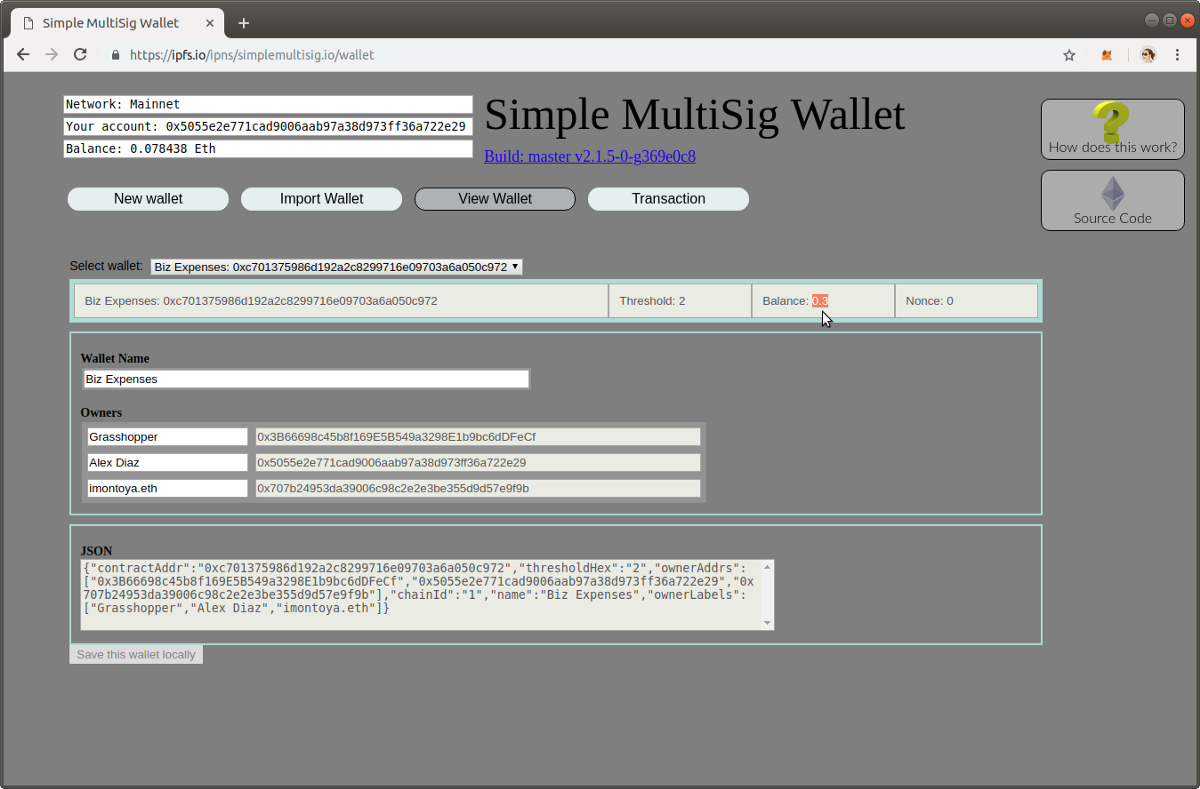
The is now deployed on the . But in order to sign transactions each of my partners will need to be able to access it. So I click on the “View Wallet” button, and select the “Biz Expenses” from the -selector:
Now I copy the data out of the text-box that says JSON. And I send that by email to each of my partners. Here, for a moment we’re going to switch to Grasshopper’s computer, where he has clicked on the “Import Wallet” button.
He copies the data into the text-box that says JSON, clicks “Load from JSON”, and then clicks “Save this locally” — and now he has a copy of the :
My other partner, imontoya will do the same.
Funding the Wallet
Now it’s time to fund the . Click on the “view Wallet” button and select the “Biz Expenses” from the -selector. The address is shown just beneath the selector. It’s 0xc7013…c972
Each of us sends 100 Finney to the address. So the total balance of the
is 300 Finney. When I reload the page the new balance is shown:
Published at Thu, 28 Feb 2019 06:02:43 +0000


