(* You MUST register and have a MoCo Decentralized Wallet to receive MoCo Bonus . If you only plan to purchase (and will not receive any Bonus), any ERC-20 will work)
Let’s Begin…
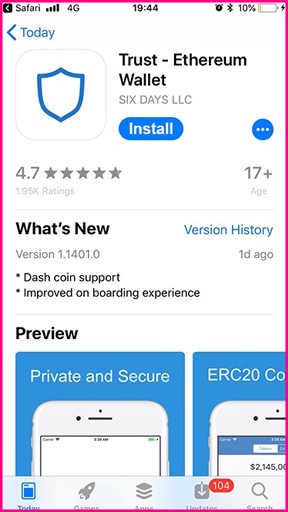
- Download one of our approved/suggested mobile Ethereum wallets below (Trust Wallet or Coinbase) from their respective App Stores. *please confirm whether you can use these apps in your own country
- Below is a step by step guide for the Trust Wallet.
- (if you need help installing the Coinbase , try this guide: )
- If you already have one of these wallets, you can skip ahead in this guide to step 11.
Download and install Trust Wallet. Click here:
2. click on “Create Wallet”
3. Back up your new
4. Write down your recovery phrase
WARNING: Never disclose your backup phrase. Anyone with this phrase can take your Ether and forever.
*** Tips for storing your backup phrase:
・Store this phrase in a password manager like .
・Write this phrase on a piece of paper and in a secure location. If you want even more security, write it down on multiple pieces of paper and each in 2–3 different locations.
・Memorize this phrase.
・Download this Secret Backup Phrase and keep it stored safely on an external encrypted hard drive or storage medium.
5. Next, verify your recovery phrase but tapping the words shown one by one (*Must be in the original order given in previous screen)
6. If you correctly input the words in order, you will see “Well done!” Now, just click the “Done” button
7. That’s it! You now have a new Trust Wallet!
8. Next, click done and you will be taken to the app’s main screen. Click on the “”DApps” icon at the bottom of the screen
Then, In the DApp window, paste the following exact URL into the URL bar and click the “Search/Go” button: .mocotoken.io
**BE CAREFUL OF FAKES/SCAMMERS!*** there is only ONE official MoCo Wallet URL: “”
You’ll also want to add MoCo Wallet as a bookmark. Depending on your version of Trust Wallet, the bookmark may be saved by clicking on a heart icon at the bottom of the screen, or by clicking the 3 dots menu 🙂
9. Click the “Enter with Wallet”
Then, Click “OK” to confirm signing. This will authorize you/your to access MoCo Wallet/dashboard. From now on you can quickly and easily enter your MoCo Wallet this way.
* For peace of mind and extra security though, we recommend that you set up your mobile device so that it requires your fingerprint or other verification to enter your Trust Wallet/MoCo Wallet each time.
10. Your MoCo will now open and you will be asked to complete verification. Please select document type (*we recommend Passport for the smoothest fastest approval with least possibility of problems. Other ID’s MUST be government-issued documents)
・First, upload a Selfie (a picture of yourself holding your ID document)
・Next, upload the front page of your document
- to ensure your verification/KYC is completed smoothly, we recommend following the example below for your Selfie photo:
11. Next, input your Personal Information
- * Look carefully at the grey text examples in each text box before you type your own information to avoid issues. If you are rejected, check each input again carefully, especially for the phone number, where most issues occur.
- You must use “+” sign, and then your country area code, finally your phone number. * caution: depending on your country you may have to drop the first digit of your phone number.
- Finally, click the “Submit Application” button.
12. Your application will then be sent to MoCo for verification
13. If you have provided current, valid documents, and have taken and submitted your photos correctly, your registration will be whitelisted and you will receive a confirmation mail from MoCo as seen below (please note that depending on how many submissions we receive or the time of day, your approval will take from 10 minutes up to 24 hours, or longer on holidays).
- * If there is something wrong with your registration information or documents, you will also receive a mail from MoCo asking you to resubmit your information.
14. You can click on the link inside the verification mail above, but it’s easier to reopen Trust Wallet and go to the DApp browser and open the MoCo Wallet bookmark.
- Then, Click the “Enter with Ethereum Wallet”
- (Note: if you enter via trust -and not the email link above- then please refer to step 9. above: i.e.: click “DApp” then click MoCo Bookmark, then click “Enter with Ethereum Wallet”)
15. Confirm Signing by clicking “OK”
(* by entering and using the MoCo Wallet, you are stating that you have read and agree to our Terms and Conditions)
16. That’s It! Welcome to your MoCo Wallet!
Published at Mon, 22 Apr 2019 08:14:23 +0000